Nightingale Loki Data Source
Integrating Loki Data Source
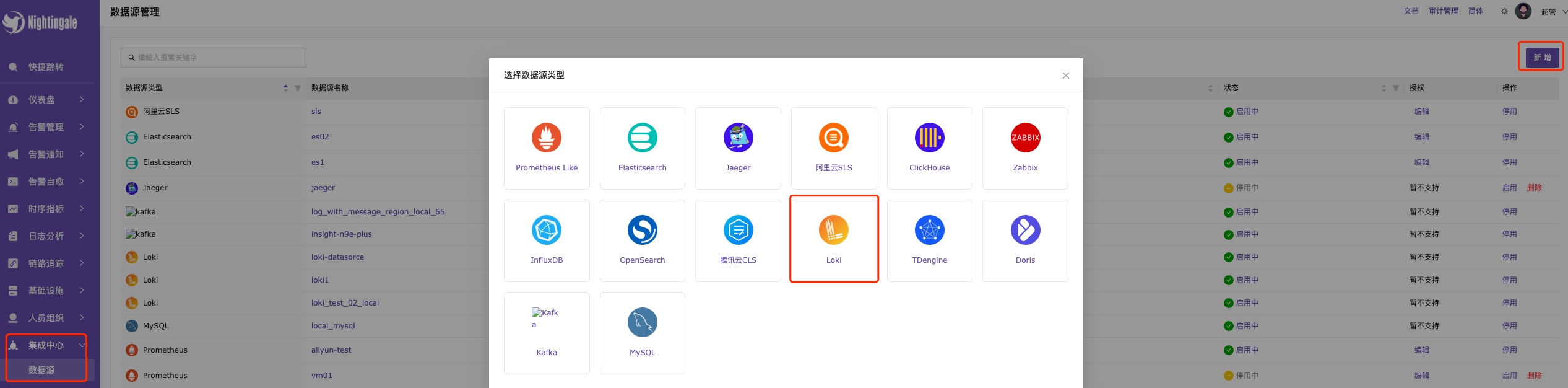
In Data Source Management —> Click “Add” in the upper right corner —> Select Loki
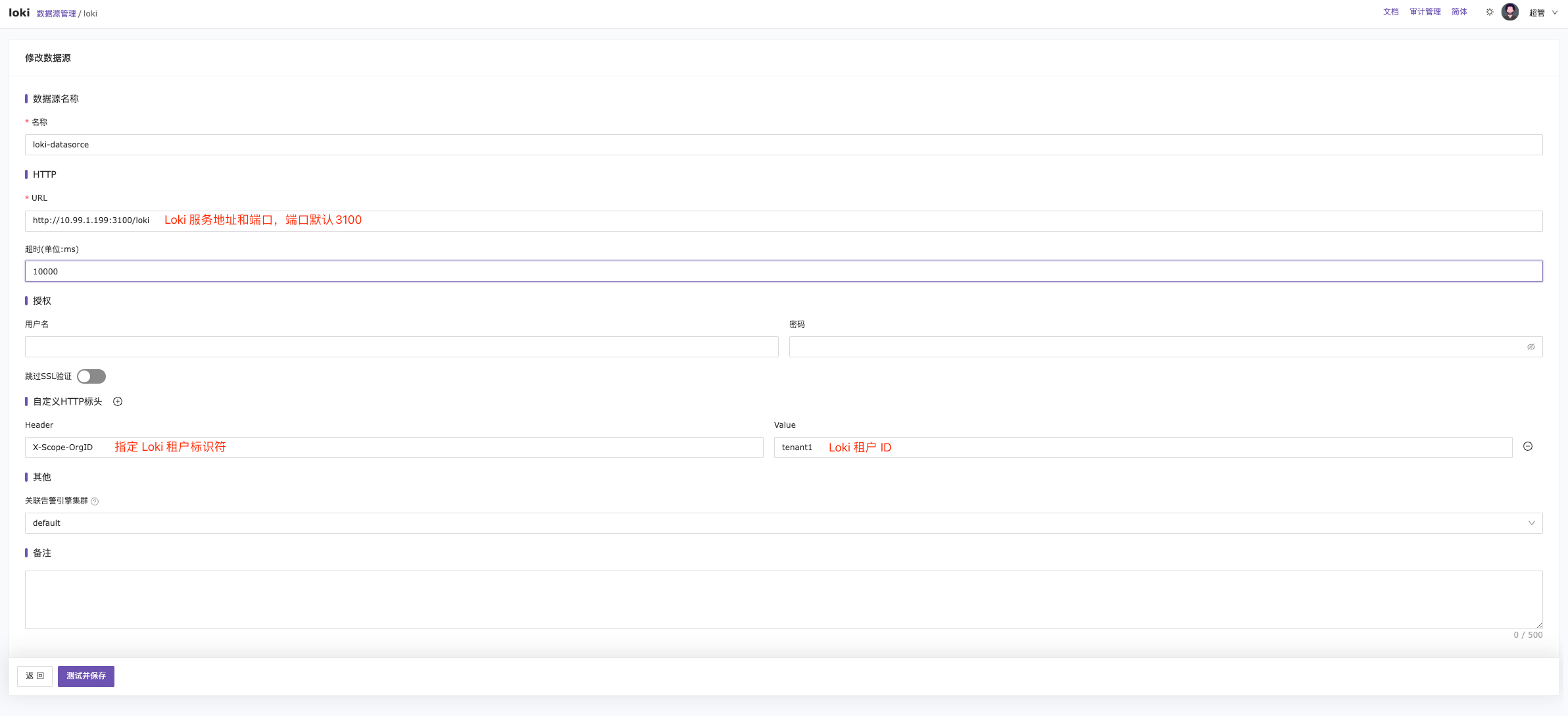
Fill in the relevant information as required. If the Loki service is not configured with multi-tenant mode, you don’t need to fill in the Header and Value below. The tenant ID can be obtained from the Loki administrator.
How to confirm if multi-tenant mode is enabled? It’s simple—just make a request to the service without a tenant ID, and you can tell by the response. If you receive a “no org id” message, it means a tenant ID is required, as shown below.

If you receive a normal response, then no tenant ID is required, as shown below.

Querying Data
Scenario 1: Query each log line with a 401 status {container="evaluate-loki-flog-1"} | json | status="401"
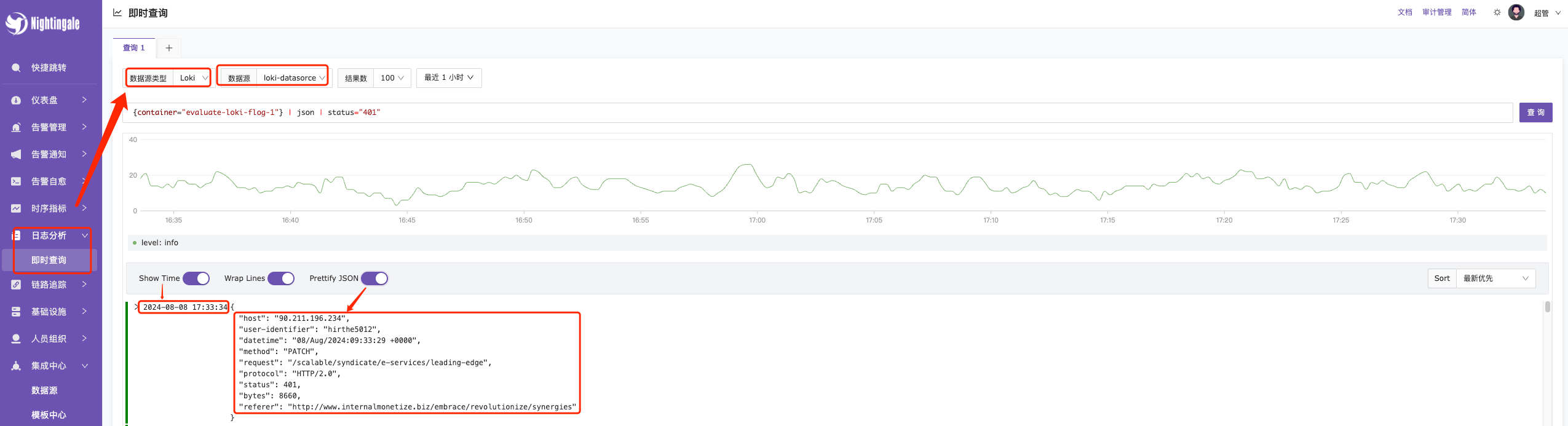
Scenario 2: Query the number of logs with a 401 status code in the last 5 minutes count_over_time({container="evaluate-loki-flog-1"} |= "401" [5m])

Configuring Alerts
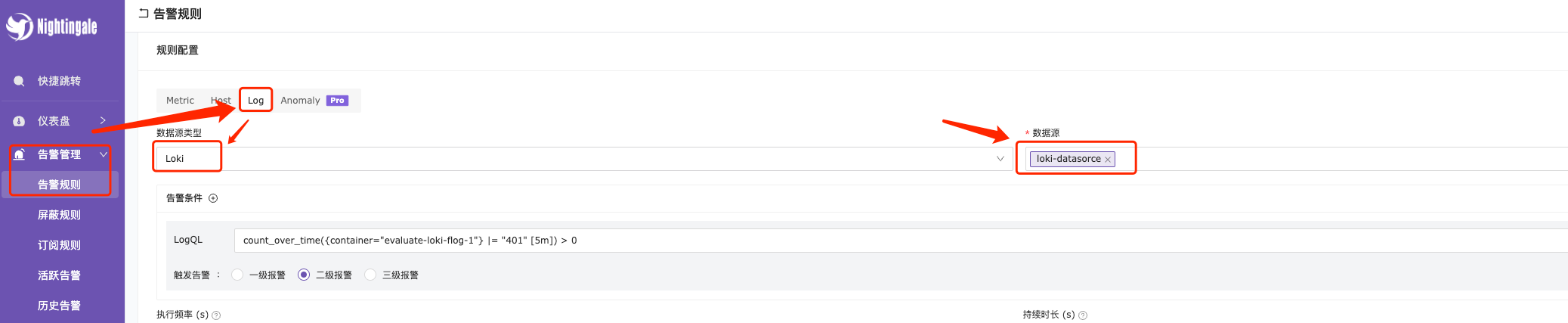
Alert Scenario: Trigger an alert if the number of logs with a 401 status code in the last 5 minutes is greater than 0
This alert scenario can be flexibly adjusted, such as replacing it with the number of occurrences of the keyword ERROR or any specific error code.
Select the Loki alert source in the alert configuration and configure the alert expression.
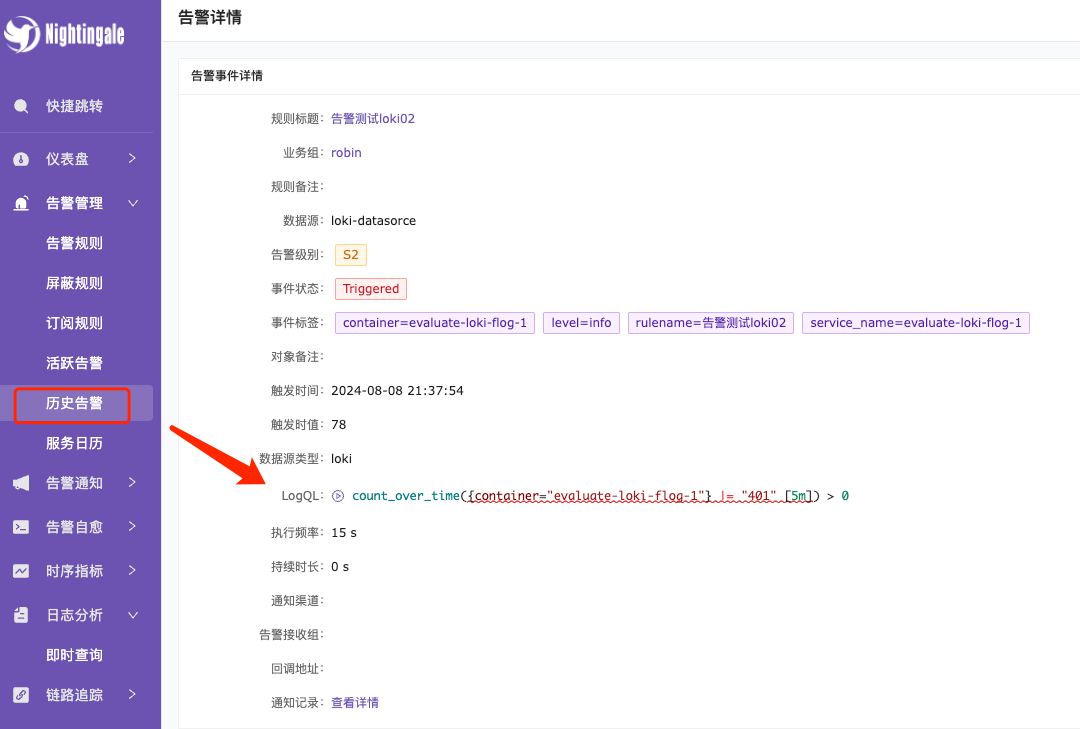
After configuration, you can view the alert details in the alert history.
Troubleshooting
If the alert configuration does not trigger as expected, you can check DEBUG.log to find related errors. You can search for the keywords “rule_eval” and “alert ID.”