Nightingale Alert Rule Template
Creating an Alert Rule Template
Alert rule templates allow for quick import into specified business groups, instantly generating alert rules for the resources under those groups. They can also enable the reuse and distribution of custom alert rule generation templates. Below is the method for generating custom alert rules. First, create the custom alert rules and choose to export them, as shown in the image below.
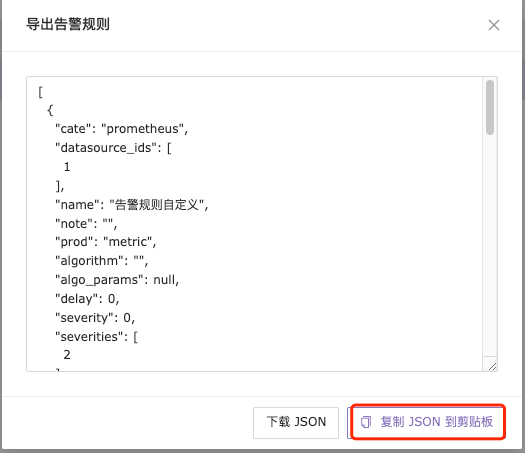
Alert Rules —> Select the alert rules to export —> Choose to export alert rules.

Choose to copy JSON to the clipboard.
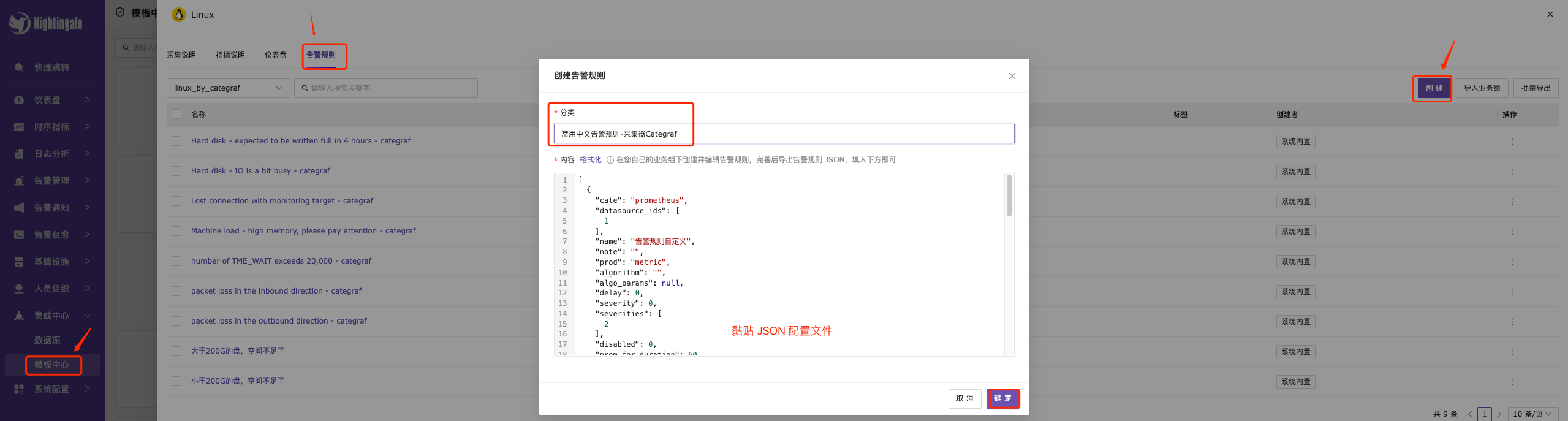
Template Center —> Select Alert Rules —> In the upper right corner, select Create —> Choose the alert rule category —> Paste the alert JSON file —> Select OK to save.
You can view the newly created alert rule template in the specified rule group.
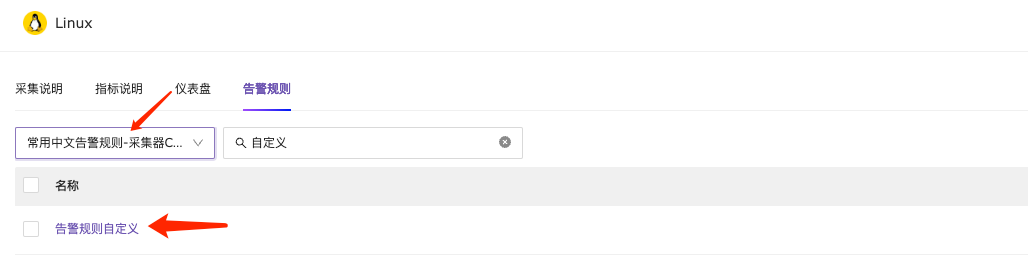
Using the Alert Rule Template
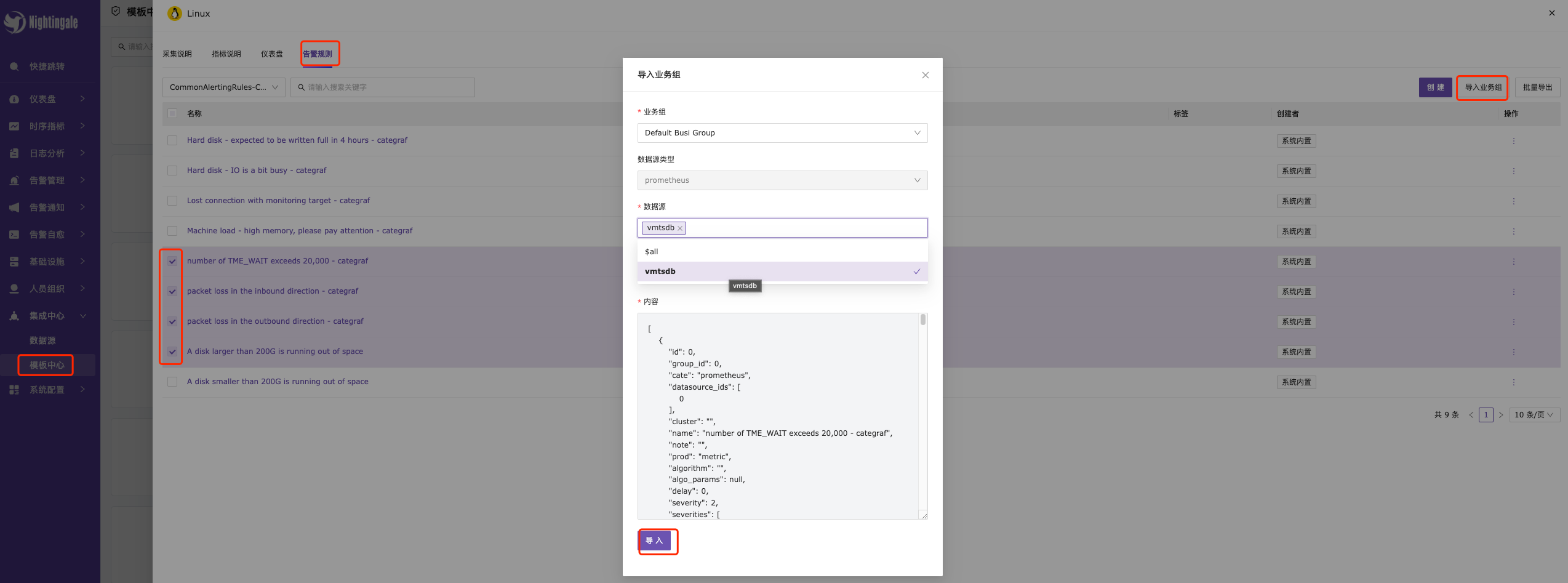
Method 1: Importing Alert Templates in the Template Center
Template Center —> Select Alert Rules —> Check Import Alert Rules —> In the upper right corner, select Import Business Group —> Choose the business group and time series database —> Finally, select Import to save.
Method 2: Importing Alert Templates in the Alert Rule List
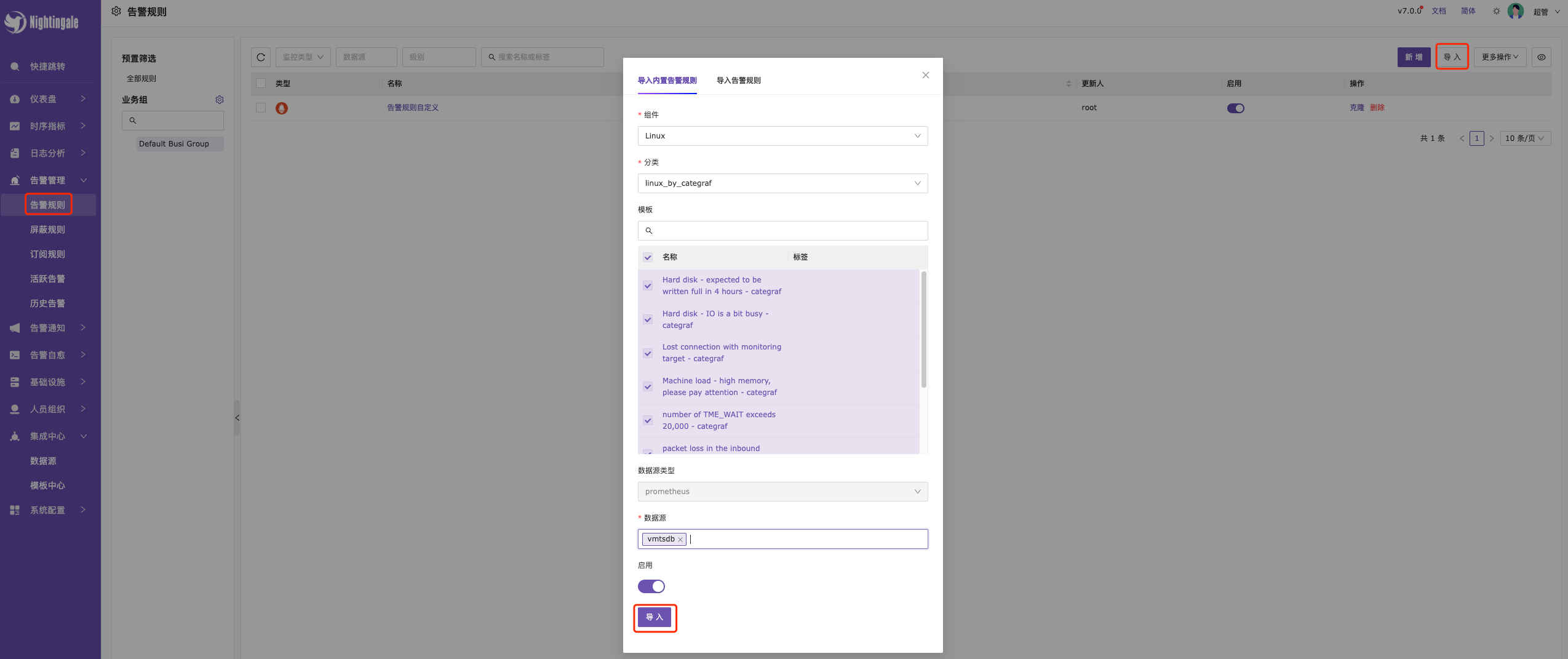
Alert Rules —> Click Import in the upper right corner —> Check Component Type —> Select Component Group —> Check Import Rules —> Choose Data Source and whether to enable rules —> Finally, select Import to save.